
Research examinations: guidance for examiners
The Research Degrees Examiner Portal will be used by examiners to complete tasks throughout the examination process. The portal is like an email inbox, in which you can read messages and respond to tasks. Each task is linked to a particular student examination, meaning if you are examining multiple students at the same time, you will see tasks for different students. The default portal view groups the tasks by student examination, and in a logical order, so it will be easy to see what needs to be completed next. On this webpage you will find guidance on using the portal, with a focus on each of the tasks you will need to complete.

Accessing the Portal
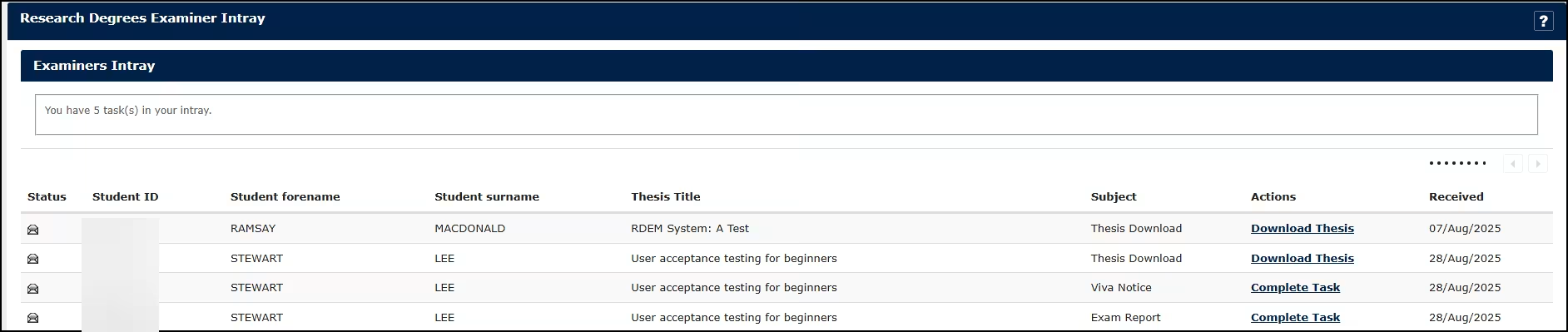
Each time a task requires your attention you will receive an email, with a link to log into the Examiner Portal. For examiners internal to Oxford, you will log in using your Single Sign-On (SSO) details. External examiners will receive two links to access the system: the first will validate their email address and generate a second link, with which they will be able to access the portal directly.
The Examiner Portal is designed to be intuitive; guidance on how to log in and navigate it can be found in this quick reference guide if required: Portal login and navigation QRG
If you have trouble logging into the portal, please write to [email protected]
Invitations
The first task that you will be asked to complete, is to respond to a formal invitation to act as examiner for a research degree. Once you have logged into the portal, you will find a task titled Invitation. Examiners are requested to review the Letter of Engagement and the relevant Memorandum of guidance.
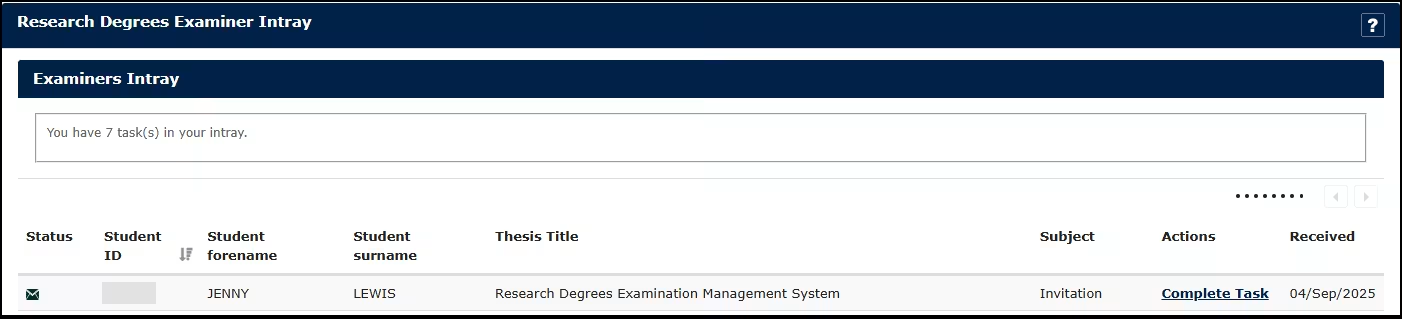
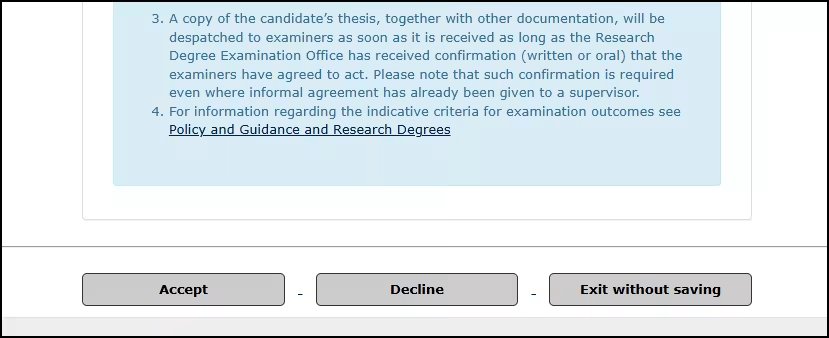
At the bottom of the task you will be able to either Accept or Decline the invitation. Clicking ‘Exit without saving’ will enable you to return to the portal without recording a response. If accepting or declining an invitation, you will be prompted to confirm your choice before the Research Degrees Team are informed of your response. Once you have either accepted or declined, the invitation task will be removed from the portal. An archived version of the task remains available in the ‘View completed tasks history’ option.
If you accept or decline an invitation by mistake, or have any other queries regarding this process, please write to [email protected]
Thesis Download
Students submit their thesis via Student Self Service. Once the student’s thesis has been received and checked by the Research Degrees team, you will receive an email notifying you that the thesis is available for you to download. This email also includes key guidance documents relevant to the examination. Once you have logged into the portal, you will find a task titled Download Thesis.
This task enables you to download a copy of the official version of the thesis, as well as any additional documents submitted by the student. You are also able to request a soft-bound copy if required.
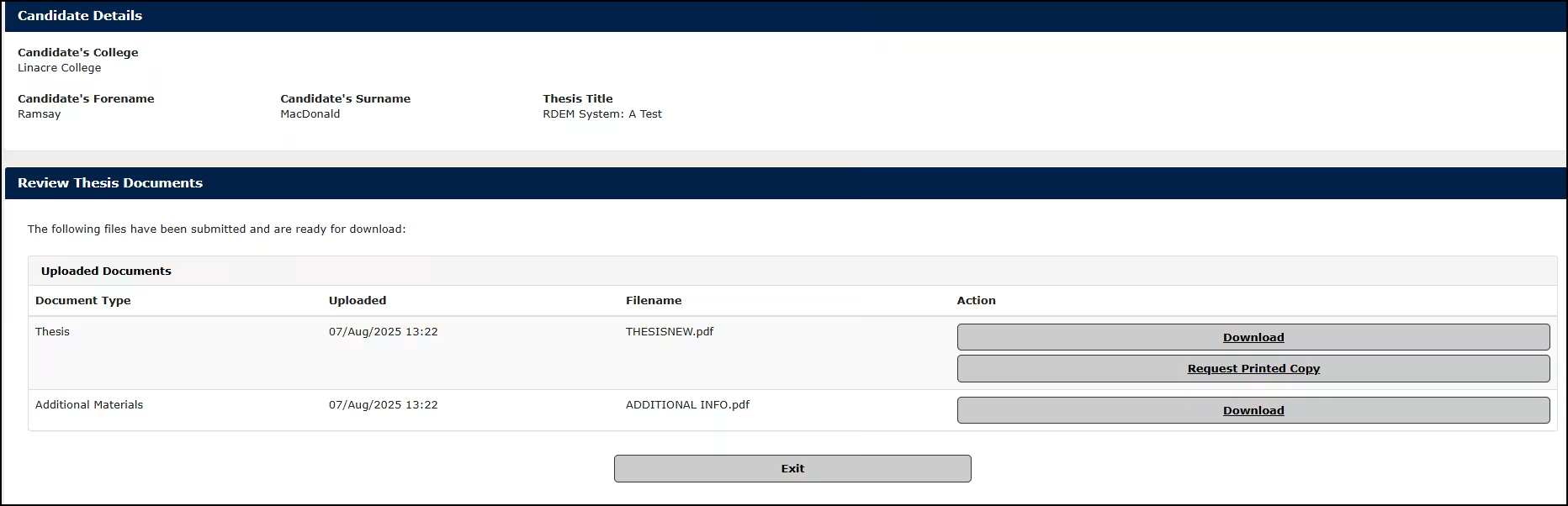
The task will stay open until the end of the examination, enabling you to download the thesis as many times as is required. External examiners who require a new link to access the thesis should write to [email protected]
Viva Notice
At the same time as the thesis is made available to download, the Internal Examiner will receive two additional tasks. (In the case of examinations with two External Examiners, one of the External Examiners will be designated to receive these tasks.) The first of these is the Viva Notice task, which fulfils the requirement to advertise the viva. It also allows us to email you on the day of the viva, to arrange payment of your examiner’s fee and expenses incurred in attending the viva. You will need to let us know the date, time and location of the viva, including whether an agreement has been made to hold the viva remotely. Viva notices do not need to be completed if no viva is taking place, for example following a major corrections outcome with no mandatory further viva.
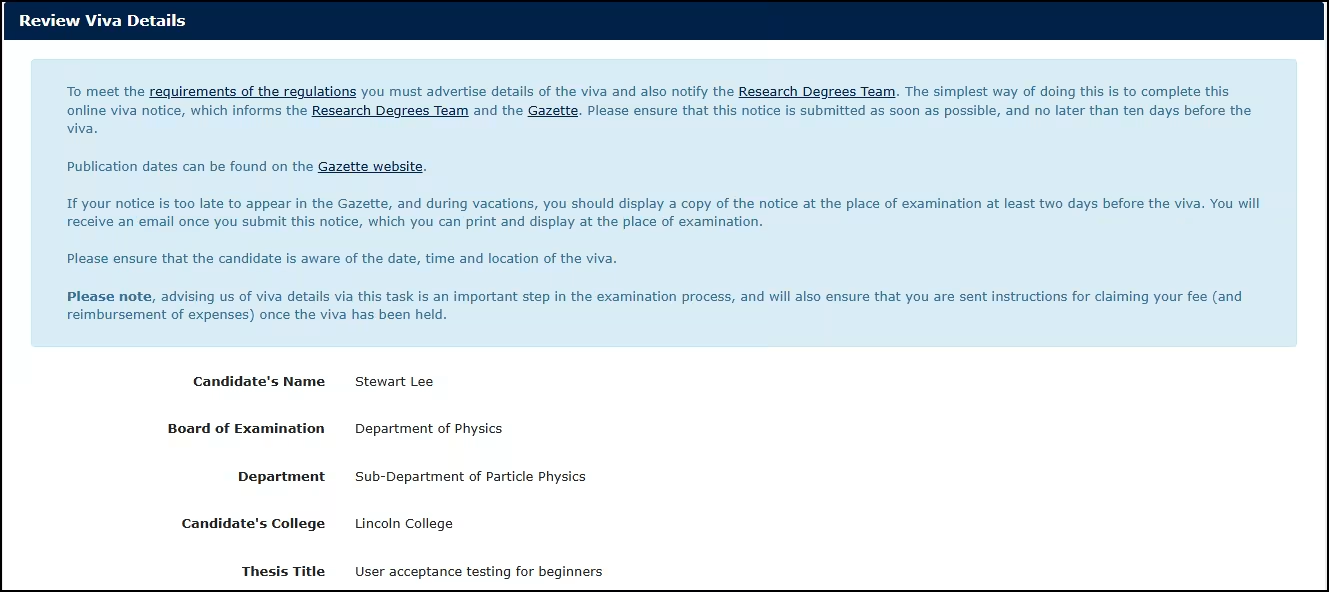
On completing the Viva Notice task, the University Gazette will be notified so that they can advertise the viva. Please note that completion of the Viva Notice task does not notify the student of arrangements for their viva. Regulations ask that examiners contact the student directly, within four weeks of receipt of the thesis, to confirm the arrangements for the viva; this should be done before completing the Viva Notice task.
Once a viva notice has been submitted the task will be removed from the portal. If the viva date changes after you have completed the task, please write to [email protected]
Report and Result Recommendation
At the same time as the thesis is made available to download, the Internal Examiner will receive two additional tasks. (In the case of examinations with two External Examiners one of the External Examiners will be designated to receive these tasks.) The second of these is the Exam Report task, which informs the department/division of the examiners’ recommended result following the viva, and allows a joint examiners’ report to be uploaded. Please note that Oxford does not require a report before the viva, and only a joint examiners’ report once the viva has been held.
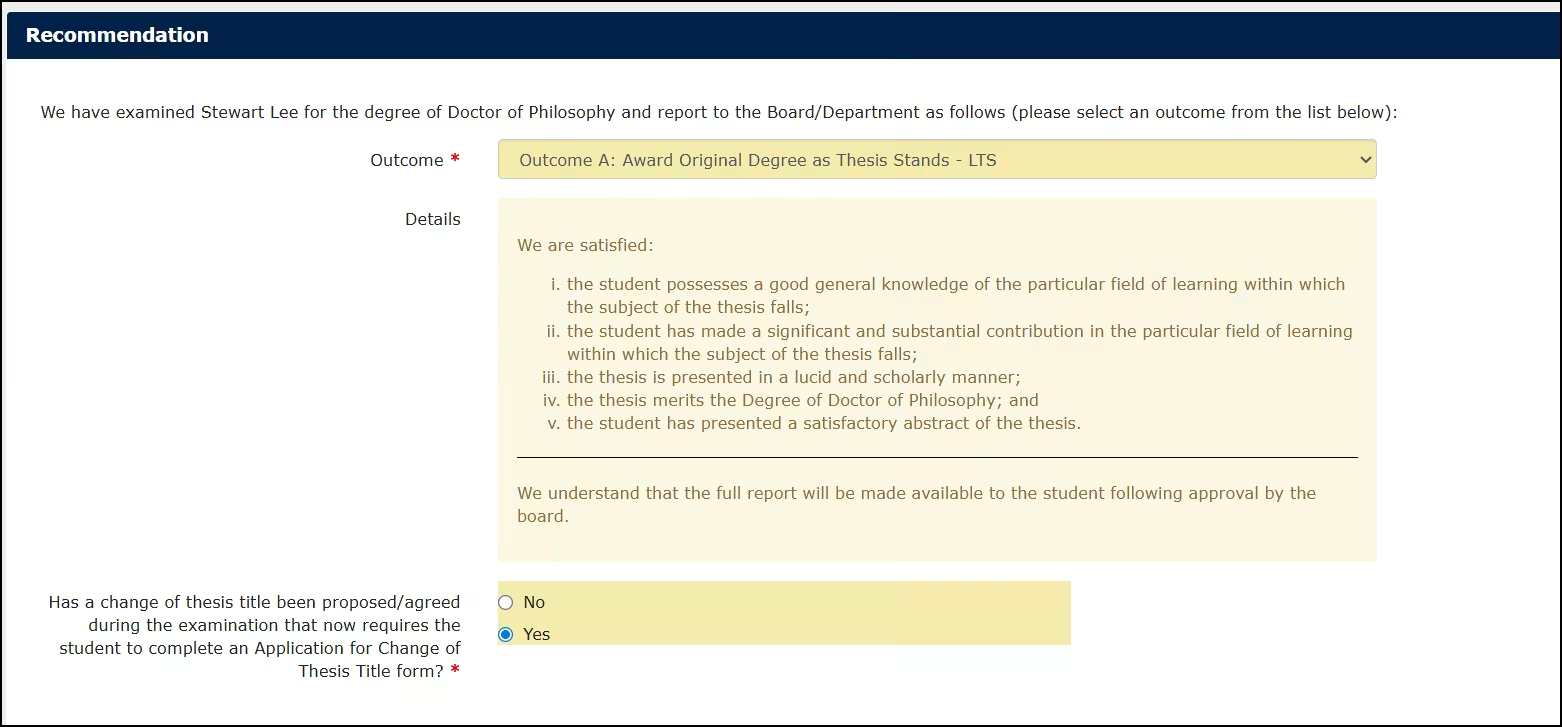
Firstly, you should select the recommended result from the ‘Outcome’ drop down menu. Only outcomes valid for the present examination will be included in this menu. You will be able to view a definition of each outcome when it is selected.
If you are recommending minor corrections, you will be asked to enter the date on which you supplied the list of corrections to the student, and to advise whether the corrections have already been completed. Submitting this notice emails the student to inform them of their deadline for completion of the corrections, based on the date you specify that the list of corrections was issued to the student. You will also receive a copy of this email, so that you are aware of the deadline.
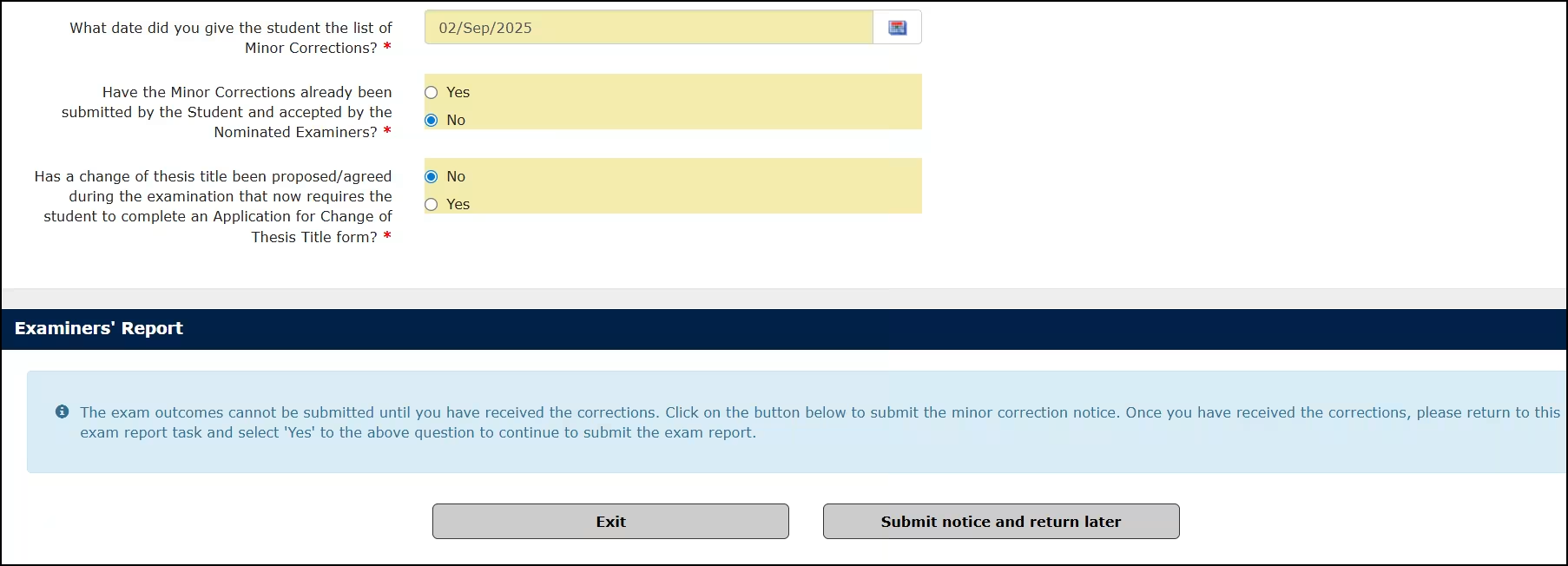
The student should return the corrected thesis to you via email, and once you have reviewed it you should return to the Exam Report task, to confirm that the minor corrections have been completed.
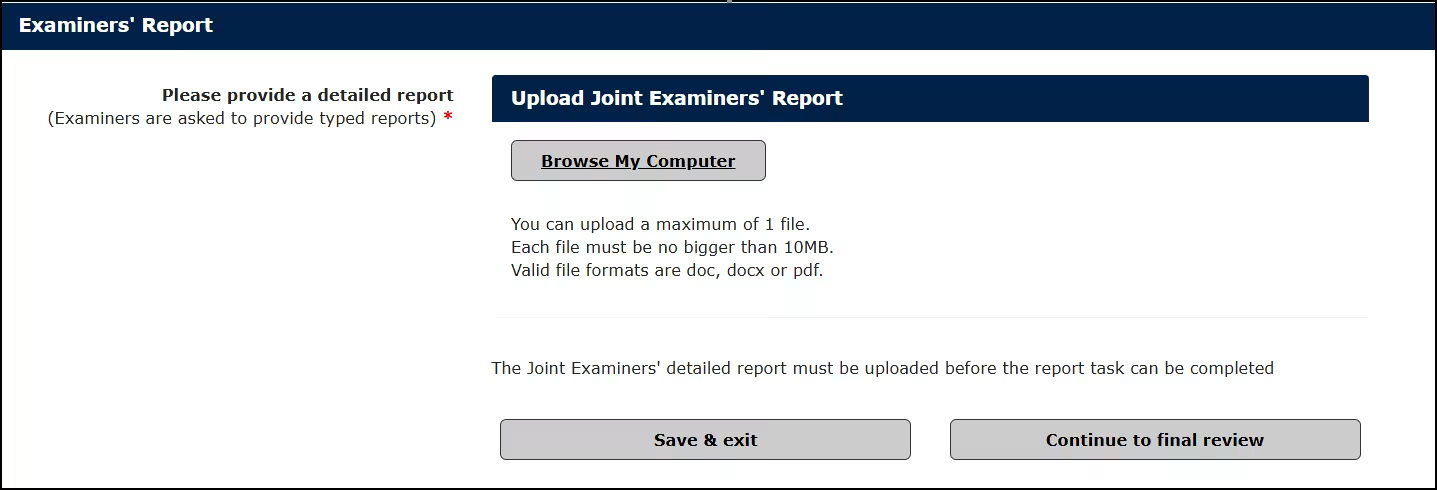
You will also need to upload the examiners’ joint report (as a single .DOC, .DOCX or .PDF file).
If the viva date is incorrect, you can still submit the report, but please also write to [email protected] to advise of the correct date.
Upon completion of the Exam Report task by the Internal Examiner (or designated External Examiner), an email will be sent to your co-examiner asking them to log in to their examiner portal to review the result recommendation and examiners’ joint report. The co-examiner can either sign-off the report, or send the task back to with comments if changes are required. If the co-examiner sends the task back, the Internal Examiner will receive an email notifying them to log back into the portal. It is best if examiners can reconcile their views and produce an agreed joint report and recommendation. If that proves impossible, however, and examiners cannot agree either on the recommendation or the main lines of a joint report, examiners should not hesitate to report the difference of opinion to the faculty board, explaining the nature of, and reasons for, their disagreement.
Please note that the result is only final once approved by the relevant Director of Graduate Studies, board or divisional approver. The relevant Graduate Studies office will refer the result and report for approval, following which the student will be sent their result letter.
If you have any questions about the report process, please write to the relevant Graduate Studies office.
Fees and Expenses
The relevant fee for your examination will be specified in your invitation, as well as the email you receive when the thesis is issued to you. This is the fee specified in the relevant schedule of fees. Provided you have completed the Viva Notice task, we will send you more information about the payment process on the day of the viva.
For internal examiners who are on payroll:
The appropriate fee will be paid automatically via payroll. These payments are processed monthly and will be included in your payslip (listed as ‘retainer’) either for the current or following month, depending on when the viva was held.
As an internal examiner, you are only eligible to claim expenses related to the entertainment of your co-examiner as defined in section 3 of the University’s Expenses and Benefits Guide. If you wish to claim any such expenses, please do this via the University’s SAP eExpenses system. When applying for these expenses via SAP, you will need to select the expenses type: ‘Research Degrees: Entertaining co-examiner expense’ and specify the relevant cost code for the student’s department, which will be included in the email sent to you on the day of the viva. If you are examining a student outside of your own department, please ensure that you change the department using the code provided in this email. You can find further guidance on SAP in this Quick Reference Guide and accompanying video.
For all external examiners, or those internal examiners not on payroll:
- An examiner payments form will be issued to you on the day of the viva, and will be pre-populated with the relevant fee for the examination;
- The payment form includes a section for you to apply for reimbursement of expenses incurred as part of the examination, subject to the maxima stipulated in this guidance;
- Please send the completed form, along with all relevant receipts, to [email protected]
If you have any questions about the payments process, please write to [email protected]